IPTV Buffering Fix: 12 Steps to Stop Freezing and Lag (2026)
IPTV buffering? Start with a restart and a speed test on the TV device, then work down this 12-step checklist covering Wi-Fi, cache, player settings and DNS.
IPTV SMART USA support team · Setup help10 min readUpdated
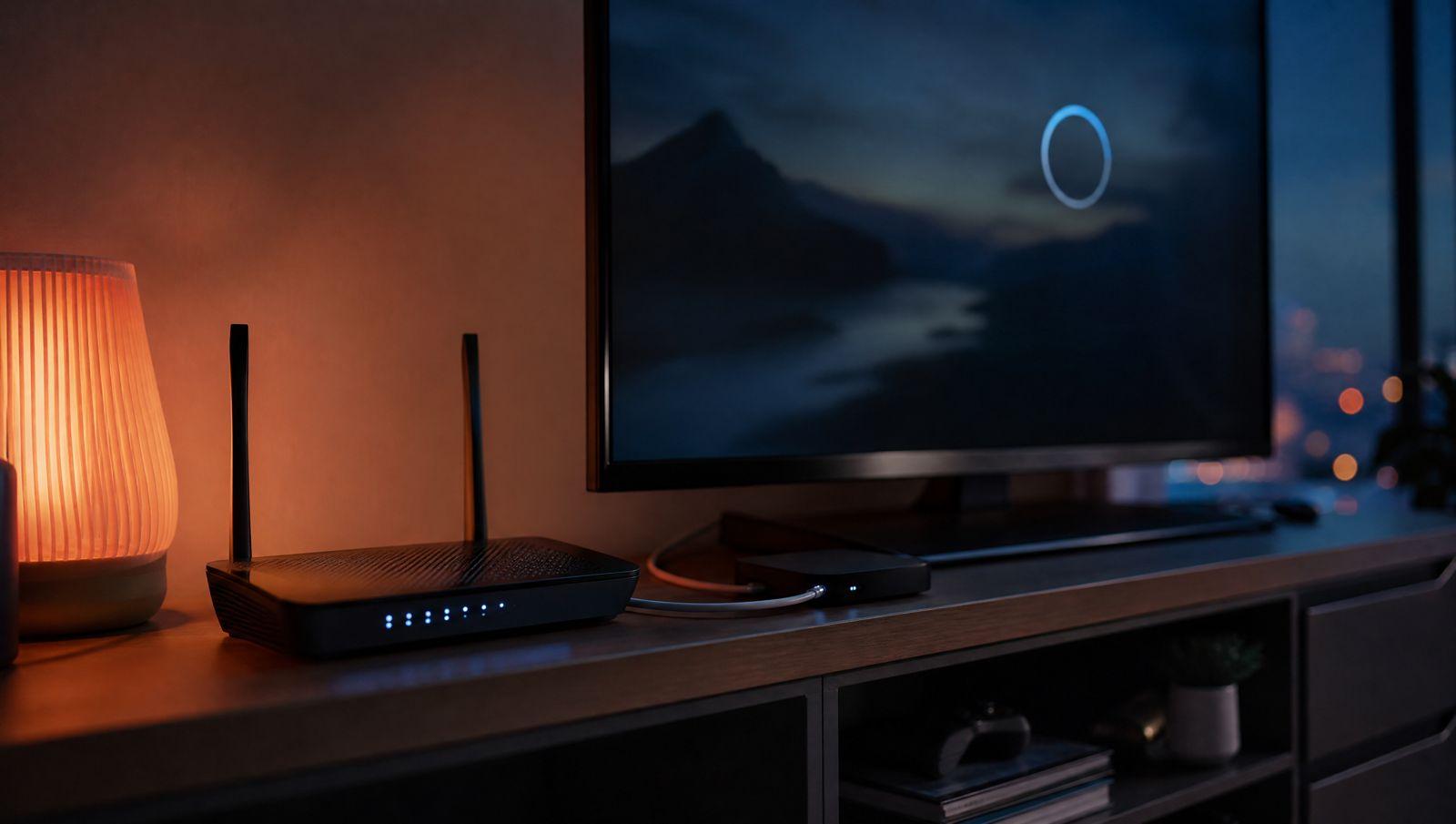
IPTV buffering is almost always caused by your home connection or the device you watch on, not by the channel. To stop it, restart the app, the device and the router, test your speed on the TV device itself, then move that device to Ethernet or 5 GHz Wi-Fi. If the picture still stalls, clear the app cache and keep working down the checklist below.
This guide was written by the IPTV SMART USA support team, and it follows the same order we use when a customer messages us about freezing. You'll want about 10 Mbps of steady speed per HD screen, and you can check what you actually get with a free browser test such as the M-Lab speed test. Try a channel after each fix so you know which change made the difference.
IPTV buffering fixes at a glance
| Question | Short answer |
|---|---|
| Most common cause | Weak Wi-Fi or too little steady speed on the TV device |
| Speed per HD screen | About 10 Mbps, steady |
| Speed per 4K screen | About 25 Mbps, steady |
| Quickest fixes | Restart the app, device and router, then clear the app cache |
| Biggest single upgrade | A wired Ethernet connection, or 5 GHz Wi-Fi if you can't run a cable |
| Time needed | A few minutes for fixes 1 to 4; router changes take longer |
In this guide
First: is it the channel or your connection?
Before you change any settings, spend two minutes working out where the problem lives. It tells you which fixes to try first.
- If several channels buffer at once, the cause is almost always your connection, your Wi-Fi or the device. Start at fix 1.
- If only one channel buffers while the others play fine, that channel's stream is the likely problem. Note the channel name and the time, and send them to support.
- If everything buffers on one device but plays fine on another in the same house, the device or the app is at fault. Fixes 4, 5 and 11 matter most.
Keep your login handy too. If an app asks you to sign in again, you'll need the Xtream Codes details or M3U link we sent you.
A quick way to rule out the TV device is to open your playlist on a computer with VLC, the free media player. Our guide to IPTV on VLC shows how to load the M3U link. If it plays smoothly on the computer over the same network, your connection is fine and the TV device or app is the place to look.
How to fix IPTV buffering: 12 fixes in order
The list runs from the quickest fix to the most involved one.
-
Restart the app, the device and the router. It sounds basic, but it clears more problems than any other step. Close the IPTV app completely and unplug your streaming device for 30 seconds. Unplug the router and modem too, wait, and plug them back in. Give the router a couple of minutes to reconnect before you test.
-
Test your speed on the device you watch on. A test on your phone tells you little about a TV in another room, so use a speed test app from the device's app store, or its built-in network check if it has one. Aim for about 10 Mbps steady per screen for HD and about 25 Mbps steady per screen for 4K. If two TVs watch at once, add their needs together.
"Steady" matters more than the peak number. If the result swings a lot from one test to the next, Wi-Fi is the likely weak point.
-
Switch the TV device to Ethernet or 5 GHz Wi-Fi. A cable from the router is the most stable option.
- On a Firestick, an Ethernet adapter made for Fire TV plugs into the power port and gives you a wired connection.
- If you stay on Wi-Fi, join the 5 GHz network rather than 2.4 GHz. It's faster and less crowded, though its range is shorter.
- Move the router into the open and up high, away from the TV's metal back panel, microwaves and thick walls.
- For a room far from the router, a mesh system or a Wi-Fi extender can help a lot.
-
Clear the app cache. IPTV apps store channel lists, guide data and images, and over time that cache can slow playback down.
- Firestick and Fire TV: Settings → Applications → Manage Installed Applications → your IPTV app → Clear cache.
- Android TV and Google TV: Settings → Apps → your IPTV app → Clear cache. Menu names vary a little by brand.
Pick Clear cache, not Clear data. Clearing data signs you out, and you'd have to enter your login again.
-
Change the player settings in your app. The player is the part that decodes the video, and switching it often fixes stutter on one particular device.
- In IPTV Smarters Pro, open the app's settings and try a different player or decoder option, for example switching between hardware and software decoding. Also try the other stream format, TS or HLS (m3u8). One often runs smoother than the other on a given device.
- In TiviMate, go to Settings → Playback and raise the Buffer size. A larger buffer adds a moment before playback starts but rides out short drops. Our TiviMate IPTV page covers the rest of the setup.
- In Kodi with PVR IPTV Simple Client, check the troubleshooting section of our Kodi IPTV guide.
-
Drop to HD on busy evenings, when everyone in your area is online. If 4K stutters then but plays fine earlier in the day, switch to an HD or Full HD version of the channel when your list includes one. HD needs far less bandwidth and still looks sharp on most TVs.
-
Check that you're within your screen limit. Every plan covers a set number of screens at the same time, from 1 to 4 depending on the plan you picked. If more devices try to stream at once than your plan allows, the extra streams get cut, which can look a lot like freezing.
Count every device that might be playing, including phones, tablets and a Kodi box left running in another room. Close the app on the ones nobody is watching. If your household regularly needs more, compare plans with more screens.
-
Pause other heavy traffic on your network. Large downloads, cloud backups, game console and PC updates, other video streams and video calls all share the same connection as your TV. Pause them while you watch, or schedule them for overnight. Some routers have a quality of service (QoS) setting that lets you give the TV device priority.
-
Consider whether your internet provider is throttling video. Some providers slow down certain kinds of video traffic. The typical sign is that browsing and other apps feel fine and your speed test looks normal, but IPTV slows down, mostly at the evening peak.
If that matches what you see, a reputable VPN on the device or on the router may help, because it hides the type of traffic from your provider. It doesn't always work, and a VPN adds some overhead, so pick a server close to you and test before and after. If nothing changes, turn it off.
-
Change your DNS. DNS is how your device finds servers on the internet, and a slow one from your provider can delay channel loading and cause stalls when you switch. Changing it on your router covers every device at once. Two well-known public services are Cloudflare's 1.1.1.1 (see the 1.1.1.1 setup guide) and Google Public DNS at 8.8.8.8. Router menus differ, so look for DNS under the internet or WAN settings.
-
Update the app, the device and the router. Install the latest version of your IPTV app from the device's app store. Then update the device itself: on Fire TV, check Settings → My Fire TV → About, and on Android TV and Google TV, look under Settings → System → About. Check your router maker's app or web page for firmware updates too.
Older streaming sticks with little memory can struggle with large channel lists. If yours is several years old and nothing above helps, a newer device may be the real fix. Our IPTV installation videos cover setup on Firestick, Android, Apple devices, NVIDIA Shield, MAG boxes and smart TVs.
-
Contact support with the details. If buffering continues after all of the above, message us on WhatsApp or by email, in English or Spanish. Include:
- your device, for example a Firestick, an Android TV box or your smart TV model
- the app and its version
- the channel or channels that buffer
- the date and time it happened
- your speed test result on the device, and whether you use Wi-Fi or Ethernet
With those details the team can check the exact stream at the exact time instead of guessing.
Troubleshoot IPTV buffering by symptom
If the checklist didn't clear it up, the pattern usually points to the cause.
It only buffers in the evening
That points to congestion, at home or on your internet provider's network at peak time. Drop to HD (fix 6), pause downloads and backups (fix 8), and go wired if you can. If only IPTV slows down while everything else feels normal, read fix 9 on throttling.
Only one channel buffers
When the rest of your list plays fine, your setup probably isn't the problem. Try the channel again in a few minutes, or try its HD or 4K version if your list has both. If it still stalls, report it to support (fix 12).
Only 4K channels stutter
4K needs about 25 Mbps of steady speed per screen, more than twice what HD needs. Run the speed test on the TV device (fix 2) while nothing else is using the connection. If the result is close to 25 Mbps or jumps around, watch the HD version or go wired. Older sticks can also struggle to decode 4K.
It plays for a while, then freezes every few minutes
This pattern usually comes from Wi-Fi dropping in and out, or from a buffer that's too small to cover short dips in speed. Raise the buffer size in your player (fix 5) and switch to 5 GHz or Ethernet (fix 3). Also make sure another device isn't starting a stream on the same account and pushing you over your screen limit (fix 7).
Channels are slow to start or the guide loads slowly
Slow starts point to DNS or a bloated cache more often than to raw speed. Clear the app cache (fix 4) and try a public DNS on your router (fix 10). A very large playlist can also make the guide sluggish on an older device.
It buffers on one device but not another
If the good one is wired and the bad one is on Wi-Fi, you have your answer. If both share the same connection, focus on the app: clear the cache, try another player setting, update it or reinstall it. After a reinstall, enter your login again, plus the EPG URL if the app asks for a TV guide.
Ethernet vs Wi-Fi, and when a VPN helps
Running a cable and trying a VPN are the two changes people ask about most. They fix very different problems. Ethernet takes Wi-Fi interference and distance out of the picture, which makes it the most dependable fix for buffering that comes and goes.
Pros: the most stable connection you can give a TV device; no interference from walls, appliances or neighbors' Wi-Fi; works on a Firestick with a Fire TV Ethernet adapter.
Cons: you need a cable run from the router to the TV; some sticks need an extra adapter; it won't help if your internet plan itself is too slow.
A VPN helps with one cause only: throttling by your internet provider.
Pros: can get around throttling of video traffic; easy to switch on and off so you can compare; can run on the router to cover every device.
Cons: adds overhead and can lower your speed; does nothing for weak Wi-Fi, an old device or a slow plan; a distant server can make buffering worse.
Frequently asked questions
Why does my IPTV keep buffering?
The most common causes are weak Wi-Fi, too little steady speed on the device, a full app cache, or more streams running than your plan's screen limit allows. Start with a full restart and a speed test on the TV device itself, then work through the checklist above.
How much internet speed do I need for IPTV?
As a guide, you need about 10 Mbps of steady speed per screen for HD and about 25 Mbps per screen for 4K. If several TVs watch at the same time, add those numbers together and leave some room for the phones and computers on the same connection.
Why does IPTV freeze only in the evening?
Evenings are peak time on home networks and on internet providers' networks. Try HD instead of 4K, move to Ethernet or 5 GHz Wi-Fi, and pause other downloads. If only IPTV slows down while everything else is fine, your provider may be throttling video traffic.
Will a VPN stop IPTV buffering?
Only in some cases. A reputable VPN can help when your internet provider slows down video traffic. If the cause is Wi-Fi, an old device or a slow connection, a VPN won't fix it and can add a little delay.
One channel buffers but the rest are fine. What should I do?
That points to the channel's stream rather than your setup. Try it again after a few minutes, then send support the channel name, the time it happened and your device so the team can check it.
Does clearing the cache delete my login?
No. Clear cache only removes temporary files such as images and guide data. Clear data is the option that resets the app and signs you out, so avoid it unless support asks you to.
See how it plays on your own connection. Try IPTV SMART USA free with no credit card, test the channels you watch on your own devices, and pick a plan only when you're happy. Paid plans still come with a 30-day refund.
Start your free trialQuestions about your setup? Our support team answers on WhatsApp and email.
All setup guides