How to Watch IPTV on Roku: 3 Options That Work (2026)
The Roku store has no dependable full IPTV player, so here are three ways to get IPTV on Roku TVs and players, from the steadiest picture to the quickest fix.
IPTV SMART USA support team · Setup help9 min readUpdated
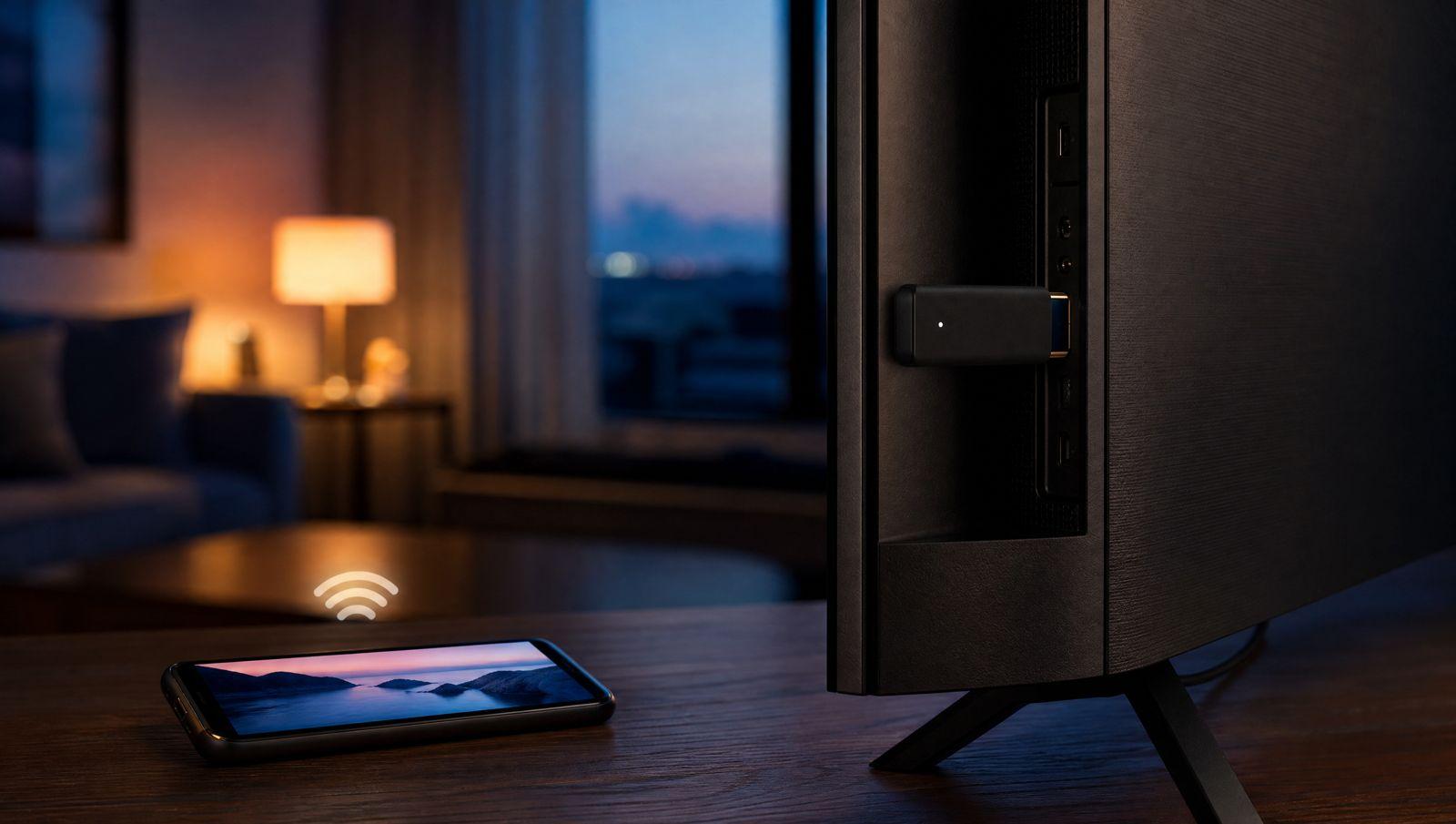
The most reliable way to watch IPTV on Roku is to plug a Fire TV Stick or a Google TV device into a spare HDMI port on the same TV and run a proper IPTV player there. If you'd rather not buy anything, you can mirror an Android phone or a Windows PC to the Roku, or use AirPlay from an iPhone or iPad on Roku models that support it.
The Roku channel store has no dependable, full-featured IPTV player that takes an M3U playlist or an Xtream Codes login the way apps on Firestick or Android TV do. Basic players turn up now and then, but they tend to be limited and they don't always stay listed. This guide was written by the IPTV SMART USA support team, and it's the same advice we give customers who ask us about Roku. For Roku's own take on mirroring, see its screen mirroring help article.
| Option | Picture stability | Phone needed? | Setup time | Best for |
|---|---|---|---|---|
| Streaming stick on the same TV | Steadiest, the stream goes straight to the stick | No | Longest, you set up a new device once | Watching every day with a full TV guide |
| Screen mirroring (Android or Windows) | Depends on your Wi-Fi, can stutter | Yes, or a Windows PC | A few minutes | Testing your login or a one-off night |
| AirPlay (iPhone or iPad) | Good when the app sends video only, weaker when mirroring the whole screen | Yes, an iPhone or iPad | A few minutes on a supported Roku | Apple households with a recent Roku |
In this guide
- What you need before you start
- Option 1: IPTV on Roku with a streaming stick
- Option 2: Screen mirroring from Android or Windows
- Option 3: AirPlay from iPhone or iPad
- Fixing common IPTV on Roku problems
- Mirroring and AirPlay vs a streaming stick
- What about IPTV players in the Roku store?
- Frequently asked questions
What you need before you start
Get these ready first. Setups usually stall on a missing login detail or on two devices sitting on different Wi-Fi networks, so check those before anything else.
- An IPTV subscription or a free trial. Your login arrives as Xtream Codes details (server URL, username and password), an M3U link and an EPG URL for the TV guide.
- A Roku TV or a Roku player connected to your home Wi-Fi.
- For option 1, a Fire TV Stick, a Google TV or Android TV device, or an Apple TV box, plus a free HDMI port on the TV.
- For option 2, an Android phone or tablet that supports Roku screen mirroring, or a Windows 10 or Windows 11 PC.
- For option 3, an iPhone or iPad and a Roku model that supports AirPlay.
- An IPTV player app on whichever device will actually play the stream.
Every device that plays at the same time counts as one screen on your plan. If you mirror from a phone, the phone is the device using the screen, not the Roku.
Option 1: IPTV on Roku with a streaming stick
This is the setup we recommend if you plan to watch regularly. A Roku TV has ordinary HDMI ports, so a small stick plugs in next to everything else and you switch to it with the TV's input menu. You keep the Roku for your other apps and get a real IPTV player for live TV.
- Plug a Fire TV Stick or a Google TV or Android TV device into a free HDMI port on the TV.
- Connect the stick's power cable to its own adapter and a wall outlet. A TV's USB port often can't supply enough power.
- On the Roku TV remote, press Home, choose the matching HDMI input from the home screen, and the stick's setup screen should appear.
- Finish the stick's setup: pick a language, join the same Wi-Fi network you use for the Roku, and sign in to the device account it asks for.
- Open the stick's app store and install an IPTV player such as IPTV Smarters Pro or TiviMate. On a Fire TV Stick, some players are installed with the Downloader app instead; our Firestick guide covers that.
- Open the player and choose to add a playlist or log in with Xtream Codes.
- Type the server URL, username and password exactly as they appear in your welcome email. If the player asks for an M3U link instead, paste that.
- If the player has a separate field for the TV guide, add the EPG URL so channel listings show up.
- Wait for channels, movies and series to load, then open a channel to check that the picture is stable.
Device-specific walkthroughs: IPTV on Firestick, IPTV on Android TV and Google TV, and IPTV on Apple TV if you'd rather plug in an Apple TV box. If you like to follow along on video, the IPTV installation videos cover Firestick, Android, Apple, NVIDIA Shield, TiviMate, MAG, Formuler, BuzzTV, Kodi and smart TVs.
This option looks better than the other two because the video travels once, from the internet to the stick, instead of going to your phone first and then across your Wi-Fi again to the Roku. You also get the full TV guide, channel groups and favorites on the big screen, and your phone stays free.
Option 2: Screen mirroring from Android or Windows
Roku supports screen mirroring from many Android phones and tablets and from Windows PCs. You play IPTV in an app on the phone or PC, and the Roku shows a copy of that screen.
Turn on mirroring on the Roku
- On the Roku, go to Settings > System > Screen mirroring.
- Open Screen mirroring mode and set it to Prompt or Always allow. If it says Never allow, every request is blocked.
From an Android phone or tablet
- Install an IPTV player on the phone and sign in with your Xtream Codes details or M3U link.
- Connect the phone to the same Wi-Fi network as the Roku.
- Pull down the quick settings panel and look for the mirroring tile. The name depends on the brand, for example Smart View on Samsung phones, or Quick Connect or Screen Cast on others. You may need to swipe across to find it.
- Pick your Roku from the list of devices.
- On the TV, choose Allow for this session or Always allow so the phone connects without asking next time.
- Open the IPTV player, start a channel and turn the phone sideways for a full-width picture.
- Turn on Do Not Disturb so calls and notifications don't pop up on the TV.
Not every Android phone supports the kind of mirroring Roku uses. Roku says Google-branded phones such as Pixel and Nexus models don't support it, so if your Roku never shows up in the list, that's the likely reason.
From a Windows PC
- Install an IPTV player on the PC and sign in. VLC works for a quick test with your M3U link.
- Make sure the PC is on the same network as the Roku.
- On Windows 11, press Windows key + K to open the cast panel. On Windows 10, open the Action Center from the taskbar and select Connect.
- Select your Roku and accept the request on the TV with the Roku remote.
- Play the channel and switch the player to full screen.
Option 3: AirPlay from iPhone or iPad
Many recent Roku models, mostly 4K players and Roku TVs, support Apple AirPlay. Roku lists the supported models and software versions in its AirPlay and HomeKit help article. Your iPhone or iPad needs iOS 12.3 or later.
- On the Roku, go to Settings > Apple AirPlay and HomeKit. If that menu isn't there, your model doesn't support AirPlay.
- Make sure AirPlay is set to On.
- Connect the iPhone or iPad to the same Wi-Fi network as the Roku.
- Install an IPTV player on the iPhone or iPad and sign in with your login details.
- Start a channel in the player.
- If the player shows an AirPlay icon, tap it and choose your Roku. Some apps put it behind the Share button.
- If there's no AirPlay icon, open Control Center, tap Screen Mirroring and choose your Roku.
- If a code appears on the TV, type it on your iPhone or iPad to finish connecting.
Use the player's own AirPlay button when it has one. Sending just the video usually looks better than mirroring the whole screen. Apple explains the difference between the two in its guide to AirPlay streaming and screen mirroring.
Fixing common IPTV on Roku problems
Your Roku doesn't show up in the mirroring list
First confirm that Screen mirroring mode isn't set to Never allow and that both devices are on the same network name. Then restart the Roku and your router, make the phone or PC forget the Wi-Fi network, reconnect it, and try again. That's the same order Roku suggests. If you're on a Pixel or another Google-branded phone, use AirPlay from an Apple device or go with option 1 instead.
The TV never asks to allow the connection
If you once chose Always block for a device, the Roku rejects it silently. Go to Settings > System > Screen mirroring and look at the list of screen mirroring devices. Remove your phone or PC from the blocked list and connect again.
The picture lags, stutters or the sound drifts out of sync
With mirroring, the video crosses your Wi-Fi twice, so a weak signal shows up quickly. Move the phone closer to the router, close other apps on the phone, and pause big downloads in the house. If your router has a 5 GHz band, put the phone and the Roku on it. When audio slowly drifts away from the picture, stop mirroring and reconnect, or switch to the player's own AirPlay button if you're on an iPhone. Our buffering fix guide covers router fixes that help here too. If stutter keeps coming back, that's usually the sign to move to a streaming stick.
There's no AirPlay menu on your Roku
Check your model and software version under Settings > System > About, then check for updates under Settings > System > System update. If Apple AirPlay and HomeKit still doesn't appear, that model doesn't support AirPlay and you'll need option 1 or option 2.
AirPlay can't find the Roku TV when it's switched off
A Roku TV drops off the network in normal standby. Turn on Fast TV start under Settings > System > Power so it stays reachable. Roku notes that this uses noticeably more power, so you can also just turn the TV on before you connect.
The player rejects your login
Copy the server URL, username and password again from your welcome email, watch for extra spaces at the end, and check that the server URL includes the port number if one was given. If it still fails, message support with a screenshot of the error.
Mirroring and AirPlay vs a streaming stick
Options 2 and 3 are fine for one evening or for checking a login. For daily viewing, the trade-offs add up.
Mirroring and AirPlay
Pros: nothing to buy if your phone and Roku support it; ready in a few minutes; handy for testing a new login.
Cons: your phone or PC must stay on and in the app; calls and notifications can interrupt; quality depends on your Wi-Fi; no TV guide on the TV, so you browse on the small screen.
A streaming stick on the same TV
Pros: steadier picture; full TV guide, channel groups and favorites on the big screen; your phone stays free; you keep the Roku for everything else.
Cons: you need to buy a stick and use a free HDMI port; first-time setup takes longer; you switch TV inputs to watch.
What about IPTV players in the Roku store?
Roku runs its own system and only installs apps from its own channel store. On Fire TV, Android TV and Apple TV you can install full IPTV players that handle your login, channel groups, the TV guide and movies on demand. On Roku that kind of app isn't reliably available.
If you do find a basic M3U player in your Roku's store, it can be worth a try for testing your link. Expect limits: often no Xtream Codes login, a plain channel list instead of a full guide, and no promise that the app stays in the store. We don't recommend building your daily viewing around one.
Frequently asked questions
Is there an IPTV app for Roku?
There isn't a dependable, full-featured one. Basic players appear in the Roku channel store from time to time, but they tend to be limited and can disappear. A streaming stick on another HDMI port is the reliable route.
Can I add an M3U playlist to Roku?
You can only if a basic M3U player is available in your Roku's store, and its features will be limited. For the full channel list, TV guide and movies on demand, use a Fire TV Stick, a Google TV device or an Apple TV on the same TV.
Why doesn't my Roku show up when I try to mirror my phone?
Check that screen mirroring is allowed under Settings > System > Screen mirroring and that both devices are on the same Wi-Fi network. Some Android phones, including Pixel models, don't support the mirroring type Roku uses, and iPhones need a Roku model with AirPlay.
Does a streaming stick work on a Roku TV?
Yes. A Roku TV has regular HDMI ports, so you plug the stick in, switch to that input with the Roku TV remote, and set up your IPTV player there.
Does mirroring use one of my screens?
Yes. The stream plays on your phone or PC, so it counts as one screen on your plan, the same as any other device.
Is AirPlay better than screen mirroring for IPTV?
It often is when your IPTV player has its own AirPlay button, because only the video is sent to the Roku and your phone stays free. Mirroring the whole screen through Control Center works too, but it leans harder on your Wi-Fi.
Try it on your own TV first. Start a free trial with no credit card, test the option that fits your setup on your own Wi-Fi, and pick a plan only when you're happy with the picture.
Start your free trialQuestions about your setup? Our support team answers on WhatsApp and email.
All setup guides