Kodi IPTV Setup: How to Use PVR IPTV Simple Client (2026)
A step-by-step Kodi IPTV setup with the official PVR IPTV Simple Client: add your M3U and XMLTV links, then browse your channels and the TV guide.
IPTV SMART USA support team · Setup help9 min readUpdated
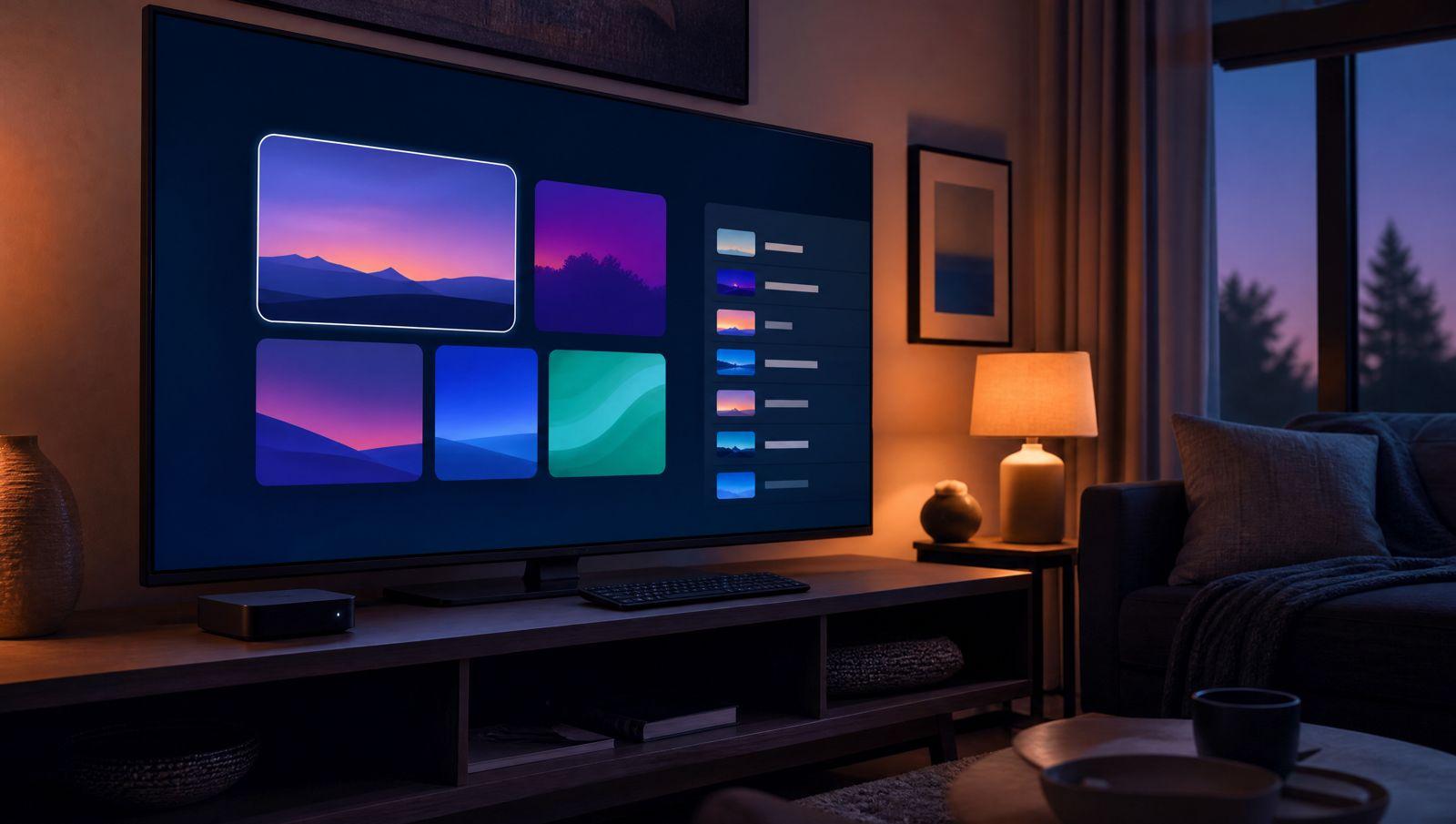
Kodi IPTV setup comes down to one official add-on. Enable PVR IPTV Simple Client, paste your M3U playlist URL and your XMLTV guide URL into its settings, restart Kodi and open TV from the main menu. It works the same way on Kodi 20 and 21, on any device that runs Kodi.
This guide is written by the IPTV SMART USA support team, and it follows the questions we get most often from customers who use Kodi. Kodi is a media player, not a channel service, so it ships with no channels at all. Third-party add-ons that promise free channels put your device and your data at risk, so we only cover the official PVR IPTV Simple Client, which is maintained by the Kodi PVR team and listed in the Kodi add-on repository.
| At a glance | Details |
|---|---|
| Kodi version | Kodi 20 (Nexus) or 21 (Omega) |
| Add-on | PVR IPTV Simple Client, free, from the Kodi add-on repository |
| Login it uses | An M3U playlist URL for channels and an XMLTV (EPG) URL for the TV guide |
| Time needed | A few minutes, plus a short wait while the first playlist and guide load |
| Devices | Android TV, Google TV, Fire TV, Windows, macOS and Linux |
In this guide
What you need before you start
Have these ready before you open Kodi. The setup itself is short, but hunting for a link halfway through is what slows most people down.
- Kodi 20 (Nexus) or 21 (Omega). Older versions work too, but the menus differ and some options below are missing.
- Your M3U playlist URL. It comes in your welcome email and sits in your account dashboard.
- An XMLTV (EPG) URL for the TV guide, if your provider supplies one. If you can't find it, ask support before you begin.
- A stable connection. Wired Ethernet or 5 GHz Wi-Fi gives you the fewest problems with live channels.
No subscription yet? You can start a free trial with no credit card and use its M3U link to follow along. Your login arrives as Xtream Codes details, an M3U link and an EPG URL. Kodi only needs the last two.
Copy the M3U URL into a note on the same device first. Typing a long URL with a TV remote is slow, and one wrong character means no channels.
How to set up Kodi IPTV step by step
On most platforms PVR IPTV Simple Client is already bundled with Kodi but switched off. These steps use the default Estuary skin. If you use a different skin, the labels stay the same but they may sit in different places on screen.
- From the Kodi home screen, open Add-ons.
- Choose My add-ons, then PVR clients.
- Select PVR IPTV Simple Client. If you see an Enable button, leave it for now. You'll enable the add-on after you add your links.
- Choose Configure and open the General section.
- Set Location to Remote path (Internet address).
- Select M3U playlist URL and paste or type your full link. It usually looks like http://server:port/get.php?username=...&password=...&type=m3u_plus.
- Open the EPG section and set its Location to Remote path (Internet address) as well.
- Paste your guide link into XMLTV URL.
- Choose OK to save, then select Enable if the add-on isn't enabled yet.
- Close Kodi completely and open it again. This forces the add-on to load your playlist.
- On the home screen, open TV from the main menu. Kodi now lists your channels.
The first load can take a minute while Kodi downloads the full playlist and guide. Leave it alone until the channel list appears. If you want to see these steps on screen first, our setup video tutorials walk through several players, including a Kodi video for the Stalker client. That one uses a portal URL and your device's MAC address instead of an M3U link, so ask support which method fits your account if you're not sure.
If PVR IPTV Simple Client isn't listed
Some builds don't include the add-on in My add-ons. You can install it from the official repository instead.
- Open Add-ons and pick the open-box icon at the top left, which opens the add-on browser.
- Choose Install from repository, then Kodi Add-on repository.
- Open PVR clients, select PVR IPTV Simple Client and choose Install.
If it still doesn't appear on a Linux system, install the kodi-pvr-iptvsimple package with your distribution's package manager and restart Kodi.
More than one playlist on Kodi 20 and later
Kodi 20 added multiple add-on instances. Under Configure you'll find Add add-on configuration, which creates a second, separate setup with its own M3U and EPG links. That's handy if you keep two accounts. Remember that each active instance can open a stream, so it counts against your screen limit while it plays.
Finding channels: groups and the TV guide
A full playlist is long. Kodi gives you two ways to get around it without scrolling through every channel.
Channel groups
Your playlist arrives sorted into groups, such as by country, sports, news or kids. In TV > Channels, open the side menu (press left on the remote) and choose Group to switch between them. With 12,000+ live channels in a full list, groups are the quickest way to reach the ones you watch. You can see what's included on our channels page.
TV guide view
Choose TV > Guide for the grid view with what's on now and next. Select a program to watch it or see its details. If the grid is empty right after setup, give it a few minutes. XMLTV files are large, and Kodi fills the guide in the background.
Kodi IPTV refresh and caching settings
By default the add-on keeps a local copy of your playlist and guide so Kodi starts faster. That's fine most of the time, but it means changes on the provider side may not show up right away. If you can't see one of the settings below, raise the settings level in the add-on's settings window from Basic or Standard to Advanced or Expert.
Auto refresh
In the add-on's General section, set Auto refresh mode to Repeated refresh or Once per day. Repeated refresh reloads the files every few minutes, up to a Refresh interval of 120 minutes. Once per day uses the Refresh hour (24h) you pick. Turning on auto refresh switches off the local cache, so Kodi always pulls fresh files.
Cache settings
The cache options are Cache m3u at local storage in General and Cache XMLTV at local storage in EPG. Both are on by default. Leave them on if your list rarely changes. Turn them off if channels you know exist keep going missing.
Clear data for a full reload
To force Kodi to rebuild everything, go to Settings > PVR & Live TV > General > Clear data, then restart Kodi. This wipes the stored channel list, groups and guide, not your add-on settings. If only the guide is wrong, Settings > PVR & Live TV > Guide > Clear data resets just the guide.
EPG time shift
If every program in the guide sits an hour or more off, open the add-on's EPG section and use EPG time shift to move the times by the right number of hours. It goes from -12 to +14 hours.
Kodi on Firestick and Android TV
The steps above are the same on every platform once Kodi is installed. Getting Kodi onto the device is the only part that changes.
Android TV and Google TV
Install Kodi from the Google Play Store on the TV itself, then follow the setup steps above. See our Android TV setup guide for other player options on the same device.
Firestick and Fire TV
Check the Amazon Appstore first. If Kodi isn't listed in your region, the official Kodi website offers the Android build. Only install Kodi from one of those two places. Our Firestick IPTV guide covers installing players on Fire TV step by step.
Getting around with a remote
On a Fire TV remote, Kodi menus can feel slow, and the settings screens weren't designed with a remote in mind. Many people find a dedicated player such as TiviMate easier day to day. Kodi is a good fit when you already use it for your own media library and want live TV in the same place.
Troubleshooting Kodi IPTV
Most problems come from a mistyped link, a cached old playlist or a full screen limit. Start with the problem you're seeing.
No channels appear
- Check the M3U URL character by character. A missing letter in the username or password is the most common cause.
- Make sure the add-on is enabled and that you restarted Kodi after saving.
- Confirm your account or trial is still active in your dashboard.
- Test the same link in another app, for example by following our VLC guide. If it plays there, the problem is in Kodi's settings.
The add-on says it can't load channels
Kodi shows this when it can't read the playlist. The usual causes are a typo in the M3U URL, an expired account, or an account that's already playing on as many screens as your plan allows. A new connection can be refused when every screen is in use. Close the app on your other devices, fix the link if needed and restart Kodi.
Old or missing channels after a change
Kodi may still be showing its cached copy. Run Clear data under PVR & Live TV > General and restart. If this keeps happening, set Auto refresh mode to Once per day.
The TV guide is empty or wrong
- Recheck the XMLTV URL in the add-on's EPG section.
- Clear the guide data as described above and restart Kodi.
- If programs show at the wrong hour, adjust the EPG time shift.
- A few channels in any large list may have no guide data at all.
Buffering or freezing
Kodi uses the same connection as any other app, so the fixes are the same. Work through our IPTV buffering fix checklist, starting with a wired connection or 5 GHz Wi-Fi. For the basics of playlists on other apps, see our guide on how to add an IPTV playlist.
Kodi or a dedicated IPTV player?
Kodi does live TV well once it's set up, but it's a general media center first. Here's how it compares with an app built only for IPTV, such as TiviMate or IPTV Smarters Pro.
Pros: free and open source; the add-on comes from the official Kodi repository; one app for live TV and your own media library; runs on almost every platform; fine control over refresh, caching and guide times.
Cons: more menus to set up than a dedicated player; slower to browse with a TV remote; uses M3U only, with no Xtream Codes login screen; large playlists can take a while to load the first time.
If you're not sure, try both during your free trial and keep the one you reach for. Each device that plays at the same time counts as one screen on your plan, and plans cover 1 to 4 screens.
Frequently asked questions
Does Kodi come with IPTV channels?
No. Kodi is a player with no channels of its own. You need a subscription that gives you an M3U playlist URL, which you then load into PVR IPTV Simple Client.
Can I use Xtream Codes login details in Kodi?
PVR IPTV Simple Client works with an M3U playlist URL rather than a separate Xtream Codes login screen. Your welcome email and account dashboard include both, so use the M3U link in Kodi and keep the Xtream Codes details for apps that ask for them.
Why does Kodi say the add-on can't load channels?
Usually the M3U URL has a typo, the account has expired, or the account is already in use on as many screens as your plan allows. Check those things, then restart Kodi.
How do I fix the Kodi TV guide showing the wrong times?
Open the add-on's Configure screen, go to the EPG section and set EPG time shift by the number of hours the guide is off. Then clear the guide data under Settings > PVR & Live TV > Guide and restart Kodi.
Should I use Kodi or a dedicated IPTV app on a Firestick?
Kodi works, but a dedicated IPTV player is often quicker to navigate with a remote. Try both with your free trial and keep the one you prefer. Each device that plays at the same time counts as one screen on your plan.
How do I make Kodi pick up new channels?
Kodi caches your playlist, so new channels can take a while to appear. Set Auto refresh mode to Once per day in the add-on's General section, or run Clear data under Settings > PVR & Live TV > General and restart Kodi for an immediate reload.
Ready to try it in Kodi? Get your M3U and EPG links with a free trial, no credit card needed, and have channels loading in minutes.
Start your free trialQuestions about your setup? Our support team answers on WhatsApp and email.
All setup guides